1
WordPress is a great tool for creating blogs. It works well most of the time, it offers automatic updates, and it offers the numerous benefits of open source software … including the fact that it’s free to use.
WordPress certainly isn’t perfect, though. (Then again, what software package is perfect?) Fortunately, most WordPress problems can be solved with a few tweaks.
Here are nine common WordPress problems and solutions.
1. I’m receiving a “Cannot modify header information – headers already sent” warning
This error message typically specifies a problem with stray characters, some of which are not visible, in front of the opening tag or after the closing tag of the file. Check the error message to find the particular file name that’s generating the warning. (The file name usually is at the end of the error message.)
To fix this problem, you have two choices. The easier choice, if you haven’t made any significant editing changes lately, would be to replace the file that’s causing the error message with your backup copy that was working correctly.
If a working backup copy isn’t available, you’ll need to download the file that’s causing the problem. Open the file in a text editing program that doesn’t create hidden characters; Windows Notepad is a great choice. Do not use a word processing program, such as Microsoft Word, because it sometimes will insert hidden formatting characters in the file. Make sure the first characters are <? and the last characters are ?> in the file. Check for any hidden characters at the end of the file, such as spaces, by moving your cursor to the end of the file and deleting any spaces.
2. The backups of my WordPress database files are way too large
Making regular backups of your database is an extremely important process, one that most people don’t perform often enough. For additional peace of mind, it’s probably best to keep three or four copies of your database backup file, just in case your primary backup file is corrupted. That can be difficult if your backup files occupy a lot of storage space, however.
Most of the time, a large database backup file is caused by certain plugins storing a significant amount of data. Plugins that block spam or that collect statistics on your blog can generate a large amount of data that really isn’t necessary to store in your database backup file.
If you’re using a common backup tool, you should be able to select the specific tables included in the database backup file. Just include the tables that are important to your blog’s data in your backup file; leave out tables that generate interesting data, but that don’t contain the core information for your blog.
Image files can add require a large amount of storage space, too. If you have some image files that you’re no longer using with your blog that are being backed up with your database, try deleting the old image files.
3. WordPress doesn’t appear to be saving my changes
Sometimes, this problem carries an easy fix: Just force your Web browser to reload the page from the server. The Web browser stores copies of Web pages in cache, or a memory area, on your computer. Upon subsequent visits to that Web page, the Web browser loads the page from cache, which allows it to load faster.
If your Web browser is loading a stored copy of the page from cache, it might not be showing your latest changes because it’s an old copy. To force the Web browser to load the page from the server: In Firefox, hold down Ctrl and Shift, and then press the R key. In Internet Explorer, hold down the Shift key while clicking the Refresh button. Depending on your browser’s setup, though, these key shortcuts might not work.
You also can try visiting a proxy site, such as guardster.com, and load your page from there. Because it’s a proxy site, it won’t use cache and will always load the latest version.
4. WordPress STILL doesn’t appear to be saving my changes
Sorry to deliver bad news, but, most of the time, if your browser isn’t causing the problem, user mistakes are to blame. Rarely, you might experience this problem if you’ve downloaded a plugin for WordPress that changes the way your browser cache behaves. If you suspect a plugin problem, you’ll have to check the documentation for that particular plugin, looking in particular for how it clears the browser cache.
Otherwise, common problems that might cause WordPress to appear as though it isn’t loading or saving your changes include making sure that you’ve uploaded the latest version of WordPress and you haven’t make a mistake in the actual coding. You might have to go through your coding line by line to look for mistakes.
5. I cannot delete old posts or pages, I just receive an error message
Users have reported this problem sporadically on message boards over the past several months. Although narrowing down the specific cause of the problem has been difficult — in part because of the sporadic nature of the problem — it appears that certain plugins interfere with the deletion option.
Until more information is discovered about which collection of plugins are causing the deletion problem, you can try a workaround solution: Just deactivate all of your plugins, make the necessary deletions, and then reactivate your plugins.
6. My version of WordPress doesn’t seem to allow workable permalinks
Permalink problems can be especially difficult to solve. Here are a few common potential issues related to permalinks, but, if these tips don’t fix your particular problem, you may need to check WordPress forums for information on your specific problem.
If you recently installed or upgraded WordPress, the software might not have correctly created the .htaccess file, which is key to creating permalinks. (You might even see an error message during WordPress installation related to the .htaccess file.) Such problems can occur because some hosts do not allow WordPress or you to access or edit the .htaccess file, which can cause permalink errors. Most of the time, you can check your Control Panel to see whether your host allows .htaccess file editing.
If you suspect this problem, contact your host to see what types of permissions you need to set on your server to allow WordPress to gain access to the .htaccess file.
7. I can’t seem to block spam from my comments section
WordPress has a few good automated tools for limiting the amount of spam that appears in comments. Blocking spam permanently, however, requires stringent moderation on your part.
To control the WordPress features related to managing comments, click Administration and Settings Panel. You can control all aspects of discussions here. To help in limiting spam, try these tips.
Click the A Comment Is Held For Moderation box if you want to receive an e-mail each time a comment is made, thereby giving you the option of accepting or denying the comment. Of course, if you receive dozens of comments each day, this option will generate an overwhelming number of e-mail messages.
Click the Comment Author Must Fill Out Name And E-mail box, which forces anyone making a comment to provide the necessary information. Some spammers might be deterred by this extra step.
Because spammers sometimes include multiple hyperlinks in their messages, you can tell WordPress to hold comments that have a certain number of links through the Content Moderation section. In the same section, you also can enter keywords that you think you’ll see in spam comments. WordPress will flag any comment that contains these words.
8. A WordPress plugin that has always worked OK in the past suddenly isn’t working
The first potential fix of a plugin problem is the easiest: Make sure that you’ve downloaded the latest version of the plugin. New releases of plugins add features, but they also often fix bugs, including the one you might be having. To check for new versions of your plugins, just click Administration and Plugin. WordPress should list all of your plugins, along with notifications of any that have upgrades available. Click Upgrade Automatically, and you’ll have the latest version. (In fact, checking for the latest versions of all of your plugins is something you probably should do on a regular basis, perhaps two to four times per year.)
If that doesn’t work, you have a few other options. You can try reinstalling the plugin from scratch; perhaps the plugin software became corrupted. Try to remember if you made any other software changes or installed other plugins between the time the problematic plugin was working correctly and the time that it failed. You could have an incompatibility issue between the malfunctioning plugin and the software changes you made. See if the author of the plugin has a blog where you can report your problem. It’s possible others are having the same issue, and the plugin author will create a fix or knows a workaround.
Occasionally, if you upgrade your version of WordPress, you could end up with multiple plugins that stop working correctly. You’ll just have to deactivate the malfunctioning plugins until the author comes up with a new release that will be compatible with the new version of WordPress.
9. I’m trying to delete a WordPress plugin I no longer use, but it’s not working and it’s causing errors on my site
Before uninstalling a plugin, it’s a good idea to visit the plugin author’s site, just to see whether the author has created any specific instructions for uninstalling the plugin. If you remove a plugin incorrectly, it could cause multiple errors.
You’ll also want to make sure you didn’t make any changes to your template files based on the plugin. Some plugins require such changes upon installation. If you can’t remember whether you made such changes, read through the installation instructions for the plugin and see whether the instructions called for such changes to your template.
Once you’ve checked for any problems related to deleting the plugin, take one final step before deleting it: Make sure you open the Plugin Administration screen and deactivate the plugin before deleting it. Trying to delete an active plugin could cause error messages.
Finally, we offer two important tips related to troubleshooting:
At some point, you may encounter a problem that cannot be fixed or that corrupts your data beyond repair. There’s only one solution: Reloading your data from your backup source. Backup your database on a regular basis. Better safe than sorry.
Second, make sure you always have downloaded the latest version of WordPress. Version updates will fix various bugs and security problems as users report them. Some new releases might seem minor, but that minor tweak might be the one that fixes your perplexing problem.
Have you encountered these problems? Have these solutions worked for you? Please share your experiences with us!


20 Useless Websites to Waste Your Time
The internet is usually a place for “getting things done,” but sometimes the soul just needs a little bit of high-quality nonsense. These websites aren’t trying to sell you a…
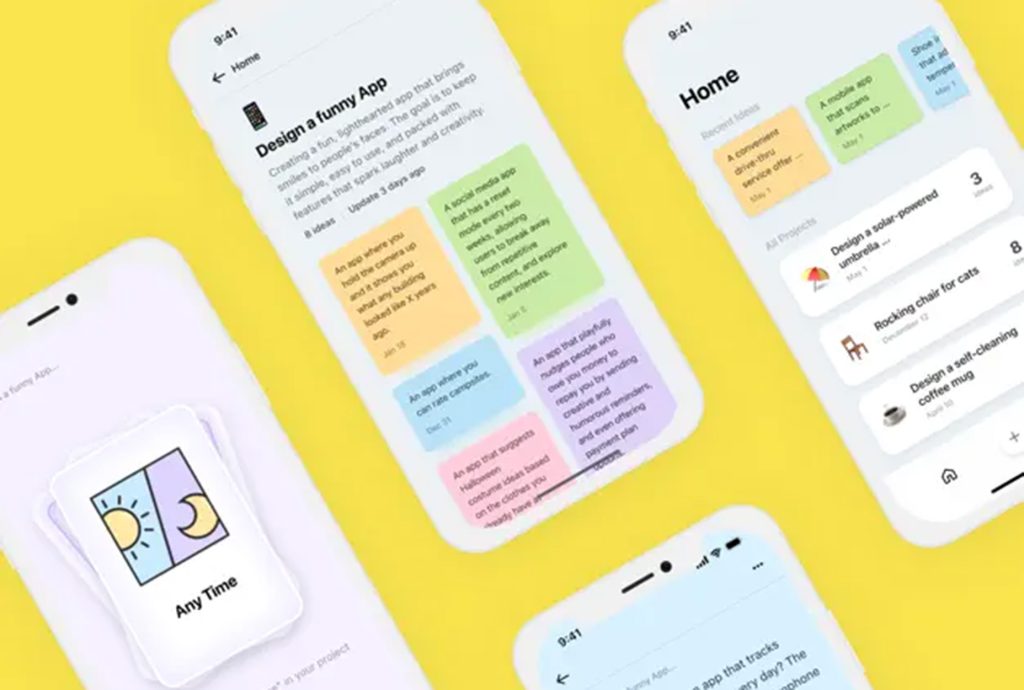
Exciting New Tools for Designers, February 2026
There are so many new – and good – tools for designers out there right now. From tiny bits of artificial intelligence to icons that delight, there’s something to help…
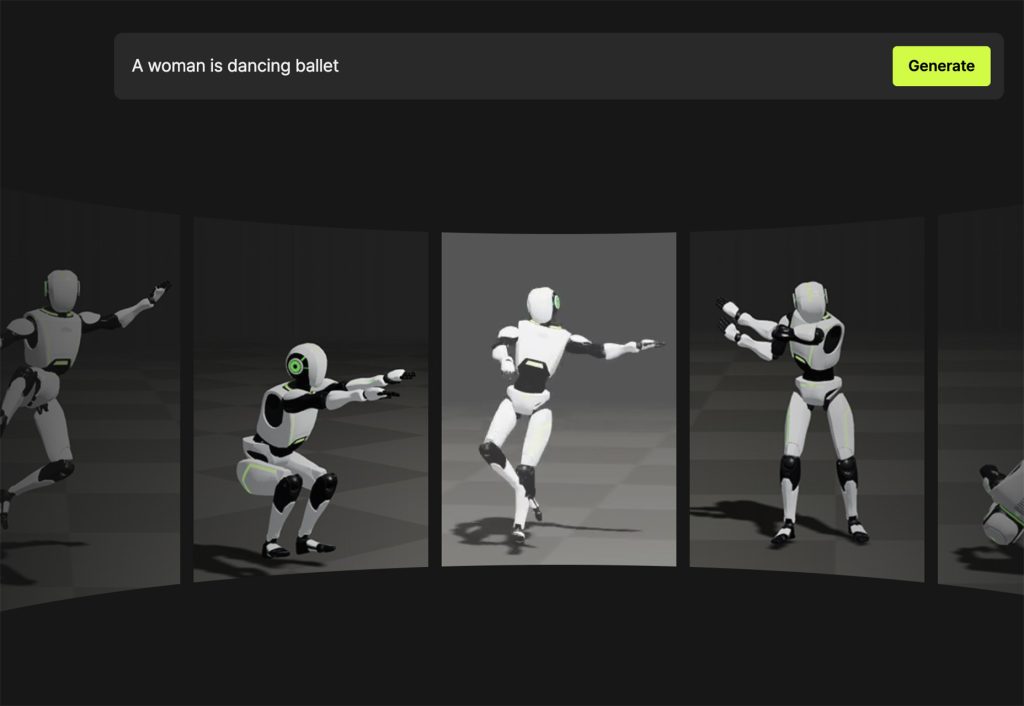
Exciting New Tools for Designers, March 2025
Spring into action this season with new tools to boost your workflows, facilitate creative thinking, and help you be a more efficient designer. This roundup is packed with new goodies…

Compilation: 15 Hilarious Google Flops
When it comes to tech, Google has been synonymous with innovation, success, and world domination (hello, Android and Chrome!). But even the mightiest giants trip over their own feet from…

3 Essential Design Trends, January 2025
Happy New Year! If the website design trends we are already seeing are any indication, 2025 is going to be a great year for visual communication. This month’s collection of…
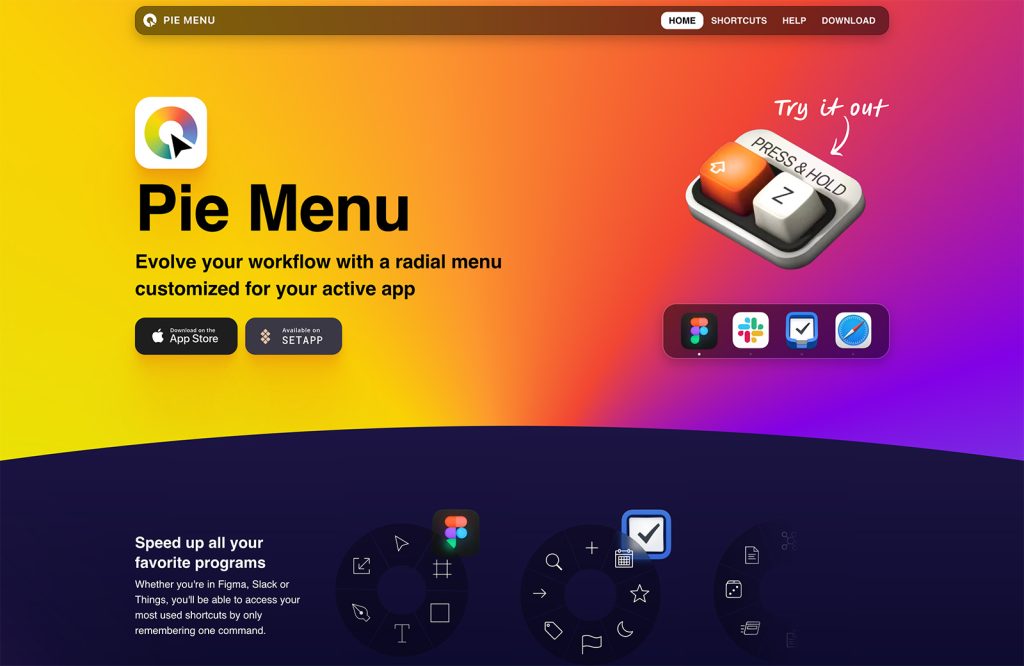
Exciting New Tools For Designers, January 2025
Welcome to our first tools round up of 2025. It’s the first Monday of a new year, and many of you are back at work after a much needed break….