• 8 Jun


    creating patterns with geometric shapes in Photoshop, oh yeahForget the clone stamp, paint bucket and pattern presets. When it comes to creating patterns, the ability to duplicate a layer is one of Photoshop’s greatest features.

    Semitransparent shapes can be very useful when creating repeated geometric “textures” of color and form.

    They’re easy to create, fun to play with and best of all, they can be uniquely yours.

    In searching for interesting patterns, designers sometimes pass over basic shapes in favor of more complex geometrics. But simpler is often better.

    The trick is to pay attention more to how shapes interact than to how a shape looks on its own.

    The concepts are simple:

    1. As translucent shapes overlap, they create new shapes.
    2. Complex patterns emerge from apparently simple origins; and just like in a poem (a haiku, for example), there’s room for variation within the prescribed form.

    Unfortunately, it’s easier to make a mess than a purposeful design. The trick is to identify which subtle changes might have consequences later.


    One Origin, Many Destinations

    When creating patterns that use opacity or blend modes, starting simple is best.
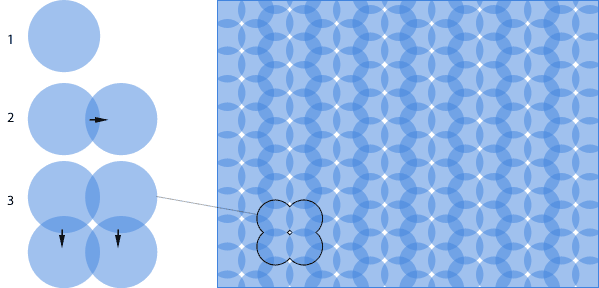
    pattern example created from duplicating a normal layer

    The pattern above was created with one circle in one layer. Here’s the process:

    1. Set a circle (colored #4184de in this diagram) to 50% opacity.
    2. Hold down the Option (Mac) or Alt (Windows) key while using Photoshop’s Move tool. The layer will be copied as the cursor drags. Their combined opacity will darken in the places where they overlap.
    3. Option + drag (Mac) or Alt + drag (Windows) both circles down and to the left—far enough to leave a white gap between each of the copies.

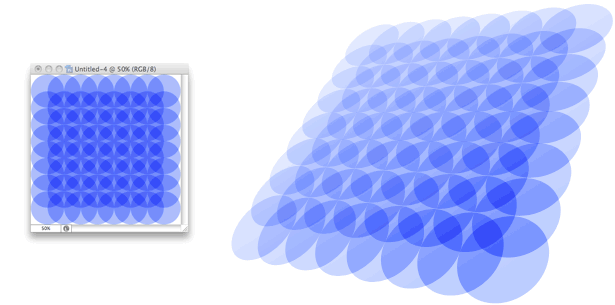
    When repeated, a pattern appears.

    Patterns emerge from the way shapes overlap as well as from the shapes themselves. Clarity comes from simplicity: a pattern that begins simply looks better in the end. The circle in our last example can be used to create many patterns, including these:
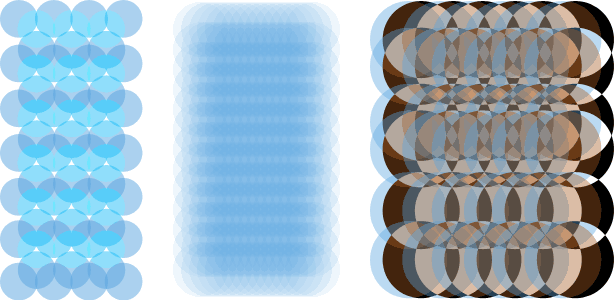
    different textures and patterns created from the same layer

    Each of these patterns was created with the same size of blue circles. Incredible variations in texture are possible with the simplest of changes; position, opacity and blend mode were the only changes made in the examples above. But “simple” doesn’t always mean “easy.”


    Blend Modes

    For pattern-making, 5 of Photoshop’s 25 blend modes stand out: normal, soft light, hard light, overlay and difference.

    examples of normal mode

    When people think of complicated layer blends, “normal” rarely springs to mind, but its straightforward nature makes it the easiest to work with. “Normal” mode is the default setting, and it mainly has to do with the opacity settings of the layers. The colors of shapes and backgrounds blend according to their strengths. Normal could also be called the “blending” blend for its tendency to find average colors between the subject (a circle in the example above) and the items below it.
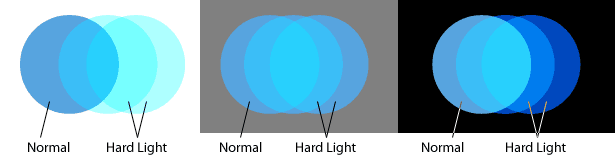
    examples of hard light

    Hard light multiplies shadows and screens highlights. Layers set to “Hard Light,” as in the diagram above, tend to tint everything underneath, which amplifies their original hue and saturation. If the layer contains dark colors, the layers below tend to get darker, and vice versa.
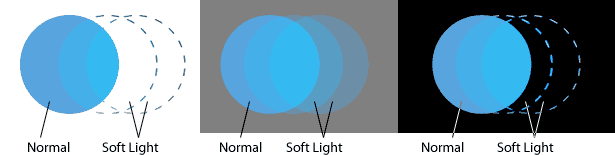
    examples of soft light

    Soft light screens highlights and multiplies shadows without changing the blend color’s luminosity. It works best when the underlying colors are neutral or have low saturation. Layers set to “Soft Light” have little impact against black and white, as shown above, but work well over pale blue and gray.
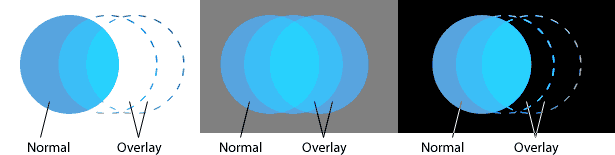
    examples of overlay

    Overlay strengthens colors below a layer and changes hues to match its own. Layers set to “Overlay” (example above) are brighter than when in “Soft Light” mode but still don’t affect rich black and pure white.

    examples of difference

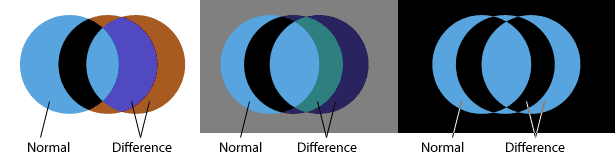
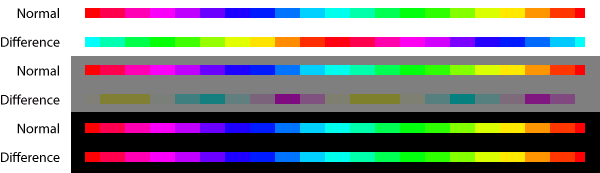
    Difference is the least predictable blend mode. Layers in this mode generally invert tones in the layers below: lights become darks and darks become lights. Hues, however, become their opposite on the 360° color wheel: reds become cyans, greens become magentas and blues become yellows. The effect will vary depending on the colors and shades below whichever layer is set to “Difference” mode.

    more examples of difference

    Above, a layer set to “Difference” mode over a white background completely inverts its colors. The same layer over a 50% gray background changes its hues 90° and muddies its tones. Over black, the “Difference” layer appears to have stayed the same.

    Here’s how they work.


    Pattern-Making, Step By Step

    As a simple example, we’ll create a pattern based on circles. Regardless of shape, there are four steps: create a shape on a layer, give it a certain opacity and blend mode, experiment with a few copies, and mass-produce the pattern.

    Step 1
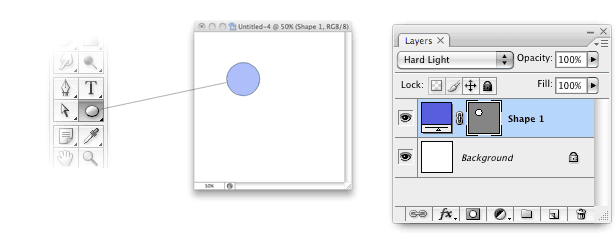
    Create a vector object with the Ellipse tool. Set the layer’s blend mode to “Hard Light.” Although any size and color will do, this example uses a 134×134-pixel circle, colored #575fdf. An image size of 600×600 pixels is a good place to start.

    step 1 in creating a pattern


    Step 2

    Duplicate the layer with Command + J (Mac) or Control + J (Windows) or Layer → Duplicate Layer. Drag the copied layer to the right, to half of the circle’s width. Alternatively, hold down the Option key (Mac) or Alt key (Windows) while using the Move tool. This will duplicate the layer as you drag.

    Make at least two copies. In this example, each new layer touches the center of the previous layer. As a result, the other layers will barely touch one another.
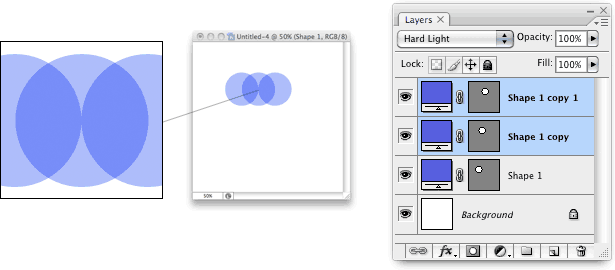
    step 2 in creating a pattern

    Step 3
    Select the first two layers and drag down the width of one-half circle. This is the same principle as step two, but down instead of to the right. When all layers share the same color, opacity and blend mode, you can create a repeating pattern simply by duplicating the layers in any order—or any direction.
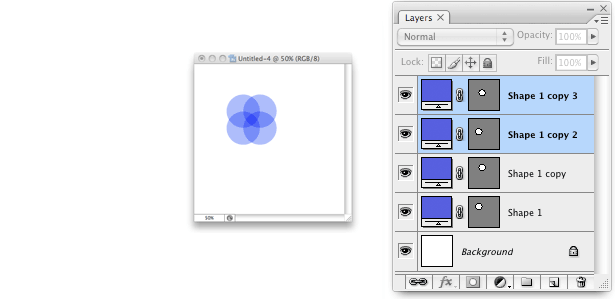
    step 3 in creating a pattern


    Step 4
    Repeat as desired.

    step 4 in creating a pattern


    Initial Decisions Affect the Outcome

    The beginning is critical when creating patterns, because duplicating layers amplifies mistakes. The more copied layers there are, the more tedious fixing problems will be.

    For example, let’s say you decide to change every layer’s opacity from 50% to 30%. That’s one change per layer—and you can expect dozens, if not hundreds, of layers in a reasonably sized pattern. And what a change a few percent can make!
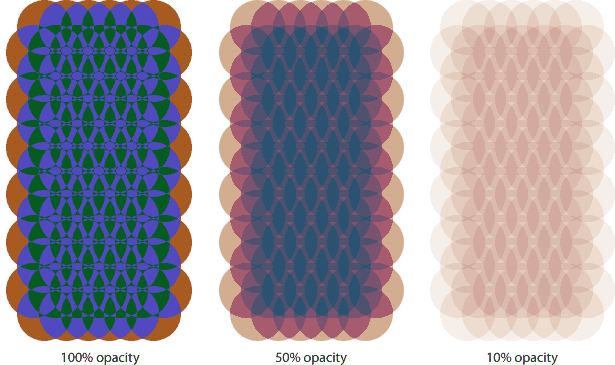
    more examples of difference

    Each pattern above uses the same blend mode (”Difference”), same shape, same color and same placement, but different opacity. If you don’t want to create an action, then you’ll have to change the blend modes and opacities one layer at a time. Photoshop has a few shortcuts to expedite the changes:

    • When the Move tool or any selection tool is active, the numbers 0 to 9 changes a layer’s opacity. Type 1 for 10% opacity, 4 for 40% opacity, etc. Typing 0 sets the layer’s opacity to 100%. This shortcut for both Mac and Windows works on just one layer at a time.
    • When the Move tool or any selection tool is active, you can quickly change a layer’s blend mode with these key combinations:
      Mac Windows Blend mode
      Option + Shift + NAlt + Shift + NNormal
      Option + Shift + HAlt + Shift + HHard Light
      Option + Shift + SAlt + Shift + SSoft Light
      Option + Shift + OAlt + Shift + OOverlay
      Option + Shift + EAlt + Shift + EDifference
    • Duplicate any single layer with Command + J (Mac) or Control + J (Windows).


    Possibilities

    “Keep it simple” isn’t just a refrain: it’s a requirement. These examples were all created with the same shape, one or two colors and blend mode changes. Yet the variations seem unlimited:
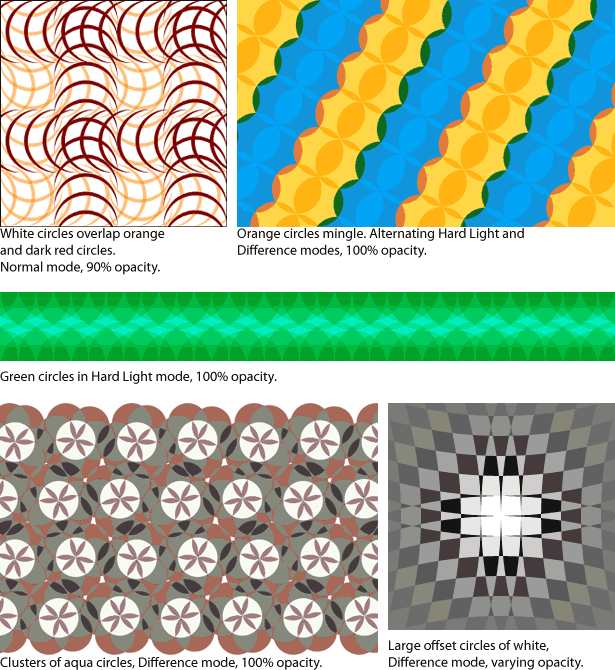
    various colorful pattern examples


    Written exclusively for Webdesigner Depot by Ben Gremillion. Ben is a freelance web designer who solves communication problems with better design.

    All of these examples use circles. Just imagine what you could do with triangles or trapezoids. Why not give it a go and link to your creations in the comments section below?


  • 36 Comments »

     
    #1
    Web Design Kent
    June 8th, 2010 at 09:29

    Nice tutorial, must try something along those lines


    #2
    enam
    June 8th, 2010 at 10:17

    amazing….thanks for sharing…


    #3
    Darkened Soul
    June 8th, 2010 at 11:34

    Kaleidoscopic patterns arise once again


    #4
    Storm
    June 8th, 2010 at 12:49

    Awesome post! Definitly going to try it!


    #5
    Slotpro
    June 8th, 2010 at 13:07

    thanks for tutorial i’m going to try it !!


    #6
    Kat Skinner
    June 8th, 2010 at 13:29

    Wow, I never actually thought of using opacity to make patterns, but the way you showed it really works – I probably wouldn’t have believed you if you didn’t have the pictures there. This idea might just be exactly the thing I can use on my new website http://www.katskinner.com for the header – I was having trouble with a straight colour background that just didn’t look quite right.

    Thank you so much Ben.


    #7
    Eigil Hoeyrup
    June 9th, 2010 at 10:44

    Hey Kat
    I just looked at your site, may I suggest you rethink the blue color of tha menu as it is quite hard to read on the brown background.

    Kind regards


    #8
    Digital Showcase
    June 8th, 2010 at 14:50

    This is great. Thanks a lot!


    #9
    Rafael Braga
    June 8th, 2010 at 15:34

    Crazy and nice man. It’s another great possibility using PS.


    #10
    Jordan Walker
    June 8th, 2010 at 15:55

    That is really a nice tutorial on using Photoshop to create opacity blending effects.


    #11
    adam
    June 8th, 2010 at 16:18

    Interesting tutorial.


    #12
    Melody
    June 8th, 2010 at 16:35

    These look like really funky kaleidoscope patterns =)


    #13
    Evan Jacobs
    June 8th, 2010 at 18:36

    Wow this is neat! Thanks for sharing :-)


    #14
    Web Design Cheltenham
    June 8th, 2010 at 18:56

    Very cool tutorial – reminds me of that 1980’s toy: Spirograph.


    #15
    Design Gallery Joey
    June 8th, 2010 at 19:09

    I really could have used this last week. Thanks guys!


    #16
    Michael Saathoff
    June 8th, 2010 at 19:22

    great tutorial, i use the same concept quite a bit when making Flash sites / ads. since my customers always request that the ads have enough motion to make someone sick!


    #17
    Atlanta Graphic Designer
    June 8th, 2010 at 19:35

    This is an interesting concept. Plus it’s cool since you can create different patterns in this way in a variety of different ways. Thanks.


    #18
    Alysia
    June 8th, 2010 at 19:46

    Great tutorial. Thanks!


    #19
    Pete Shaw
    June 8th, 2010 at 20:01

    Thanks for sharing, always wondered about those blending modes.


    #20
    Punta del Este
    June 8th, 2010 at 20:54

    wow very nice!!, with that a “flower of life” patter design can be easily made.

    tank you


    #21
    Jerry-lee
    June 8th, 2010 at 21:56

    Hi, nice post. I would appreciate one more paragraph about “usability” of these patterns? Can you show some examples of use in “real life”? It’s nice to play with Photoshop but at the end of the day, isn’t it this a waste of time?


    #22
    La Cinyc
    June 8th, 2010 at 23:37

    Patterns can be used as the beginning of a design or as an overlay fading out (down, up, left, right) or
    combined with other patterns, can be used in comics, can be used in flash design, can … it’s just yet another easy way to create your own without using too many effects…

    usability… then what use do some colours have? what use does a picture have in a certain website or an ad campaign, it’s all about creating an emotion, a “motion”, a feeling, a reaction, not always on a conscious level. it’s not at all about “just another pattern with no use”

    just a thought…


    #23
    Jerry-Lee
    June 9th, 2010 at 02:21

    Hi, thanks for your response. I understand, respect. I mainly wrote about real examples of prints/websites/flash etc using patterns.
    Something like there are shown various famous logotypes when writing about “how to make a logotype”… I consider these shown patterns as a raw material, I would like to see examples of final products.
    As I can remember, I can see patterns used as a background image of the webpage, but they are mostly “pixel-based”.
    Regards

     
    (Comments won't nest below this level)
     
    #24
    david
    June 8th, 2010 at 23:44

    hey,

    Doesn’t photoshop also include a way to save patterns for alter use in a library?
    It would be a cool extension to this article to show how you can actually save part of an pattern to be able to use it as a fill.

    Also, I was hoping this article could tell me how to define which part of a pattern you must cut-out to make a picture you can just repeat to make a big pattern.

    Anyway, this was maybe beyond the scope of the article.


    #25
    malydok
    June 9th, 2010 at 01:44

    You can define a pattern in Photoshop’s Edit menu. It will create it from the whole open document, so you have to crop it to a square ‘cut-out’- the basis of a pattern. How do you do that? You basically have to analyze what you have created and find the square shape that creates it. Can’t explain it any better, I’m also still a novice in this stuff. Still, you won’t know until you try ; )


    #26
    david
    June 9th, 2010 at 04:04

    thnx for the reply! much obliged!

     
    (Comments won't nest below this level)
     
    #27
    Nitesh patel
    June 9th, 2010 at 07:15

    really nice tute .. i am a new user of PS so it is worth more for me


    #28
    jeprie
    June 9th, 2010 at 12:32

    I wrote a simple on how to create complex pattern in Photoshop in psdtuts. You may want to use it and combine the technique here.
    http://psd.tutsplus.com/tutorials/designing-tutorials/quick-tip-create-a-complex-pattern-by-nudging-smart-objects/


    #29
    Infocus Web Solution (I) Pvt Ltd
    June 9th, 2010 at 14:01

    I’m surely going to using it for our new projects. Nice and Easy to Understood.

    Thanks


    #30
    BebopDesigner
    June 9th, 2010 at 15:01

    Looks really cool! thanks for such a great tut!


    #31
    CG
    June 9th, 2010 at 19:13

    Great Tutorial! Thanks a lot!
    One thing is missing though. Scripting! (Yeah, I’m a geek!)
    I mean, duplicating all those layers manually doesn’t sound so logical to me, I’m sure the better way to do this is using Adobe ExtendScript.
    I once tried to learn that thing, but couldn’t find any thorough tutorial or a comprehensive guide. There was the documentation but, ain’t got enough time to go through all that now!
    Anyone here tried scripting for stuff like making patterns?!


    #32
    Adam
    June 9th, 2010 at 21:28

    Its truly awesome. Thanks for the idea!
    Also, for additional interesting results, try different shapes as well, like triangles or other geometrical shapes. I love this! :)


    #33
    Emily
    June 10th, 2010 at 02:30

    This is pure awesomeness! Thank you so much! Used part of this technique for my Twitter background.


    #34
    John
    June 10th, 2010 at 14:54

    great tutorial, will be using such textures and patterns in future designs


    #35
    ava7
    June 12th, 2010 at 20:17

    nice tut. that’s how i made some patterns on my site :)


    #36
    Burton Haynes
    July 27th, 2010 at 17:37

    Hands down, Apple’s app store wins by a mile. It’s a huge selection of all sorts of apps vs a rather sad selection of a handful for Zune. Microsoft has plans, especially in the realm of games, but I’m not sure I’d want to bet on the future if this aspect is important to you. The iPod is a much better choice in that case.

     
    Name (required)

    E-mail (required - never shown publicly)

    Web-site

    Your Comment (smaller size | larger size)

Home| Advertising| About| Contact

© 2010 All Rights Reserved