• 9 Mar

    typographyType is one of the most-used elements of the web. Think about it. Unless you are YouTube or Flickr, chances are your site visitors are coming for your text content – not the fancy packaging that surrounds it. So why are web designers still treating text like a secondary element?

    Good typography brings order to the page and increases legibility. It allows people to process information faster.

    A more scannable, readable site means happy visitors. Happy visitors return often, buy products, leave comments, and share the site with friends. See why it might be worth thinking about?

    I could blather on forever about how far typography has come on the web, and how far yet it has to go. I have frequently bounced between web and print design. When you’re going from InDesign to TextMate, the limitations of web type are crystal clear.

    But plenty has been said about what web type can’t do. This isn’t going to be another rant. Instead, let’s focus on a 5 easy fixes for the typographic eyesores that abound across the Web.

    1. Use A Reset Stylesheet

    Stupid, but true: No two browsers use the same presentation defaults. Differences in padding, margins, headings, and indentations are rampant. If you want your page layout to be more consistent across browsers, it pays to start with a CSS Reset stylesheet.
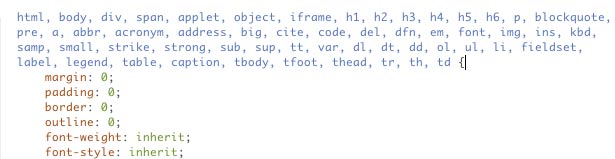
    Use a reset stylesheet for better web type.

    Two I recommend:

    Yahoo’s CSS Reset Stylesheet
    Eric Meyer’s CSS Reset Stylesheet


    2. Watch Your Measure

    Measure refers to the length of a single line of type. A longer line = a longer Measure. Studies have shown that for optimal readability, running text columns such as your main body copy should be somewhere between 45 – 75 characters (30 – 50 ems) including spaces. This is one of the reasons that fluid designs (ones in which the columns expand and contract to fit the browser width) are harder on the eyes.

    Additionally, your leading should increase with the length of your Measure. Leading is the amount of white space between lines of text, and is controlled via the CSS line-height property. If you need to use an extra-long Measure, make sure your leading opens up.

    Likewise, if you have a small column such as a sidebar with a short Measure, your leading should be tighter. I find the default value most browsers assign is a little too tight. A line-height of around 1.4em works well for most body content.


    3. Tend To The Space Between

    It’s not just about your text – its about the space that surrounds it. Too little space makes text hard to read, but so does too much. The key is to find a simple balance that guides the eye from one element to the next.

    Whitespace Example

    One of the common mistakes new designers make is to fill every inch of space. White space refers to the empty or “negative” space around your content, and it is crucial. Take a look at a well-designed magazine such as Dwell or Good and you’ll see that even though it costs the publisher money to print each page, they leave abundant amounts of white space around the text. The page will be in balance and your eye will move from space to space effectively.

    In addition to adjusting your line-height (as mentioned in #1), try increasing your padding and margins. Unless you’re trying to pull of a crazy visual trick, there should always be a good amount of white space around your text. Don’t let it butt up against other elements, especially images. Let your content chunks (headings, paragraphs, sidebars, etc.) breathe.

    Mark Boulton wrote a very informative article about White Space for A List Apart, check it out.


    4. Don’t Go Font Crazy

    A good rule of thumb for any designer is: use no more than two font faces in your design. Two font faces can look very stylish. A List Apart uses variations of Georgia and Verdana to create an elegant and polished look. But continuing to add font faces to your interface creates unnecessary confusion. Similarly, avoid using too many font sizes, colors, or treatments on a page or in a paragraph or they will compete with each other instead of adding emphasis as intended.

    Although font stacks and technologies like sIFR and Typeface.js allow you to specify just about any font you want as the default, resist the temptation to go wild with the body copy. Decorative fonts are best kept to headlines because they affect readability. Think about it – when is the last time you picked up a paperback novel set entirely in Comic Sans?

    When creating font stacks, pay attention to the size of your pairings. Some fonts that look similar render at very different sizes. Verdana and Arial are a great example of this. Typetester is a great tool for comparing core web fonts and creating a successful stack. Another useful tool called Font Stack Builder shows you what percentage of users will see each variation.

    Regardless of what fonts you decide to use, make sure they are not teeny tiny. I know its hard… tiny text looks cool. But think about the poor, squinting users! Keep body text above 10 or 12 pixels. If you insist on teeny tiny, at least use relative sizing for all those IE 6.0 users who otherwise couldn’t make it larger. Read Wilson Miner’s article on font sizes for a great take on the debate.


    5) Don’t Neglect The Details

    The client provided the content. Adding it to the site is just a matter of copying and pasting, right? Wrong, wrong, wrong. This is a trap web designers fall into all too often.

    Even those of us who diligently add heading tags, format each paragraph and organize bulleted lists with care forget some important typographic details. Many (including me) missed out on formal typography training, so you can’t blame us entirely. But the devil is in the details. Its time we embrace these basics:

    Use smart quotes

    What’s the difference between smart quotes and dumb quotes? Smart quotes (also known as book or curly) are curved and have both an opening and closing style. Dumb (straight) quotes are usually straight up and down. An apostrophe is typographically just a single quote so the same problem applies. A dumb quote (also called a prime) should only be used between measurements. For example, 6′4″ uses double and single prime quotes.

    Web Typography Smart Quotes

    Unfortunately our keyboards default to prime quotes. Microsoft Word and other text editors just correct them for us as we write. Adding smart quotes to HTML pages requires more work from the web developer because you need to use markup to produce opening and closing quote symbols. I see the same problem with em and en-dashes, ellipsis, trademark and copyright symbols. Coders take the easy way out by replacing them with hyphens, multiple periods, a large TM and the infamous (C). Using the right symbols does make a difference visually. Do it right and make editors everywhere smile.

    How to make smart quotes:

    #8216; = opening single quote
    &#8217 = closing single quote
    &#8220 = opening double quote
    &#8221 = closing double quote

    I know – no one wants to spend all day hunting down quotes. Luckily, tools like SmartyPants and Textism can do much of the legwork for you by automatically formatting text that includes smart quotes and the like.

    Read “The Trouble with EM and EN” from A List Apart for more detail on the subject and the UTF-8 character encoding for most common special characters.

    One caveat – lots of CMS text editors (like the one this site uses) won’t let you implement smart quotes without extra plugins. Sad, but true.

    Stop putting two spaces after a period. Please! It’s not necessary and its actually rather annoying.

    On your links, use border-bottom: 1px solid instead of text-decoration: underline. Underlines can run through the descender characters (g, j, p, q, y) making them hard to read, especially when using smaller font sizes.

    And while it has nothing to do with typography, running a quick spell check never killed anyone. Even if all you did was copy and paste, a spelling error that slips through to a live site reflects badly on everyone involved.

    Pay attention to those 5 fixes and your site designs are sure to improve. Remember that these are just a starting point. Good typography is a learned skill just like anything else, and it requires study and practice. Always keep an eye out for sites that are getting it right and make note of what they are doing. Need inspiration? Check out the sites below for examples of great web typography and post examples you find to be inspirational.


    Inspirational Type:

    Written exclusively for WDD by Mindy Wagner.

    What do you think of these simple ways to improve your typography? Do you implement them on your websites? We’d like to hear from you!

  • 79 Comments »

     
    #1
    Kumail
    March 9th, 2009 at 10:14 pm

    That was a great post, Concise yet informative. Enjoyed, dugg, tweeted! :)


    #2
    Milan
    March 9th, 2009 at 10:28 pm

    Nice article. However, you’ve just forgot the ; ’s on the speech marks/apostrophe codes.


    #3
    Kevin
    March 9th, 2009 at 10:42 pm

    Some really useful tips. Thank you.


    #4
    Bryan P.
    March 9th, 2009 at 10:50 pm

    This is a good source to improve typography. I think this is a great source for people in web design.


    #5
    Dimitry Z
    March 9th, 2009 at 10:58 pm

    Thanks for this post. As you state in point #5, I rather enjoy reading type that is decorated with standard text formating. Often, little else is needed other than some bold-ing, a list or two, smart quotes and appropriate white-space (#3).


    #6
    Frog
    March 9th, 2009 at 11:08 pm

    Never considered the smart/dumb quotes before, so thanks for a shroud lesson in typography


    #7
    Dainis Graveris
    March 9th, 2009 at 11:15 pm

    short bet very useful article! Thank You for reset css, someway I lost it :)


    #8
    The Frosty @WPCult
    March 9th, 2009 at 11:50 pm

    Very good tips on typography :)


    #9
    webdevhobo
    March 9th, 2009 at 11:53 pm

    That first tip is a standard really, but why go through the effort of typing all the existing HTML tags when you can just do this:

    * {
    margin:0;
    padding:0;
    border:0;
    outline:0;
    font-weight:inherit;
    font-size:inherit
    }

    Seriously, it’s a waste of space. The * symbol was introduced with CSS 2.0 and makes the declerations within its block apply to every single tag. It was invented for the very reason of replacing all the junk in the example image with 1 single symbol.

     
    2 Replies
     
    #10
    cenzi
    March 10th, 2009 at 1:06 am

    was that a joke that in 5) you use ) and not a . ?


    #11
    abdusfauzi
    March 10th, 2009 at 1:13 am

    the tips about using smart quotes really sounds interesting. Hmm. maybe i should try that later.

    p.s: i’m also using my own typography template for the site. the tips helps me. :)


    #12
    Bob Dye
    March 10th, 2009 at 2:45 am

    In general, useful tips for new designers or those who may not have read up on web typography.

    I’m not sure I agree with your comments on Smart Quotes. All of your other recommendations clearly affect the readbility of web pages. The comments on Smart Quotes seem to be simply personal preference or an attempt to carry over print quidelines to the Web no matter what. If you have evidence that their use increases readbility, why not provide it?


    #13
    David Hucklesby
    March 10th, 2009 at 3:41 am

    A very nice summary of techniques I find most valuable. Bookmarked – thank you.

    I’d add a caveat to #1 though– don’t use a reset unless you know exactly what each rule is doing (and which values are not universally supported, e.g. “inherit”).


    #14
    Gelay
    March 10th, 2009 at 7:39 am

    Didn’t know about smart quotes. Thanks.


    #15
    Jacquelyn
    March 10th, 2009 at 8:01 am

    Great post! I didn’t even know there were character entities for quotes!!!


    #16
    insic
    March 10th, 2009 at 9:22 am

    hahaha! i cant believe im using a dumb double qoute. lol


    #17
    Lee Munroe
    March 10th, 2009 at 10:10 am

    Great tips Mindy. I too am guilty of being lazy and not using quotes properly. Until now :-)


    #18
    Tom Perry
    March 10th, 2009 at 12:50 pm

    “running a quick a spell check never killed anyone.”
    A spell checker would’nt trap this one.


    #19
    Diogo Duarte
    March 10th, 2009 at 4:02 pm

    Nice article…

    Gratz!


    #20
    Richard Ziade
    March 10th, 2009 at 4:08 pm

    Nice post. We actually tried to adhere to a lot of these guidelines when creating our Readability bookmarklet.

    Well done.


    #21
    Keith Carangelo
    March 10th, 2009 at 4:27 pm

    Nice post. But it is much easier to remember ‘, “, ’, and ” (l = left, r = right, s = single, d = double) than the hexadecimal equivalents.


    #22
    hiddenson
    March 10th, 2009 at 5:48 pm

    A refreshing article, thank you.

    Interesting information about smart quotes.

    On the other hand, I don’t want to be picky but you preach measure and space, and I don’t see much of these on this design ;)


    #23
    Paula Hillier
    March 10th, 2009 at 7:24 pm

    Great article, thanks. I have had the same issues with smart quotes and en/em dashes when using our email marketing system. It is a very manual process to correct it, but I completely agree that it does make a difference.


    #24
    smick
    March 11th, 2009 at 3:02 am

    #3 is good advice, don’t get me wrong but your example shown, and the claim that designers want to fill every inch of space isn’t quite what’s going on there. What I see is the annoying default spacing set for right or left-aligned images, not something the designer wanted. If the designer didn’t create more space there, it was because they didn’t know how, not that liked the way that looked.

    Still the advice is correct, make that spacing more comfortable. Funny how we feel a sense of the crowding. We actually sense that we need space there.


    #25
    Rahul
    March 11th, 2009 at 6:28 am

    I like this post, specially the “reset css” which I’ve been overlooking for quite a time now. Thanks for the reminder to me ;)


    #26
    Larry Roth
    March 11th, 2009 at 3:15 pm

    Great tip about using a reset stylesheet. Often overlooked, but adds quite a bit when implemented.


    #27
    Sarah
    March 11th, 2009 at 9:16 pm

    Helpful post! I often forget about the smart quotes in web content since Wordpress has the “curly quotes” feature. And the two-spaces after the period thing is a hard habit to break. When I first learned to type, two-spaces was the standard. Nonetheless, I’m going to make a conscious effort– one space is the standard in most style guides anyhow.


    #28
    Krystian
    March 12th, 2009 at 2:36 am

    Nice article. As for reset.css – it should not be used as all-purpose tip. There are some advantages and disadvantages.
    Smart quotes tip – very usefull, thank you.
    I can add, that very important thing is to rightly use font size (see http://www.alistapart.com/articles/howtosizetextincss/)


    #29
    Abbie
    March 12th, 2009 at 3:11 am

    Good basics, here, thanks. One item to re-consider: telling designers to stop using two spaces after a period.

    Using two spaces improves readability (more white space) especially for fast and speed-readers. And, as more people scan–instead of read–text, that one extra space between sentences helps the eye take in an entire sentence instead of just a few words at a time.


    #30
    Amelia Vargo
    March 12th, 2009 at 12:37 pm

    This is really good. Do you have any tips for making flexible sites with a specified line length, because it really bugs me when the line lengths are too long (actually I just don’t bother reading it anymore) I really want to design more flexible websites but the line length issue kills it for me!


    #31
    Greg
    March 12th, 2009 at 6:27 pm

    Abbie, I was originally inclined to agree with you (right up until this very moment I was a two-spacer), but before putting my foot in my mouth I decided to do some reasearch. I knew that it was a holdover from the days of monospaced typewriters (I, too, was taught to use two spaces in typewriting class in front of an actual typewriter– younger audiences still may have been taught on a computer by someone who themselves learned on a typewriter and are set in their ways). The thing that’s going to stop me from typing two spaces is only habit. It’s absolutely reflexive and habitual for me to put two spaces now, and is going to be tough to change.

    But, all research seems to point out that fonts/rendering engines will put sufficient “white space” for a single space after a period. I have to admit, I’ve never read an any text on the ‘net and thought to myself, “I wish they used two spaces after their periods.”

    I’ll have to humbly admit to having been forced into changing my mind by the author of this post… I’ve been staunchly defending two spaces for years without questioning my own opinion on the subject.

    Nice article. Thanks for the links to the outside resources, though I’m not 100% sure the Typeface.js is working on my platform (Windows XP, FireFox, latest Java, re-installed Flash just to be sure)… going to the example pages I’m still seeing web-safe fonts.


    #32
    Bernd Artmüller
    March 13th, 2009 at 7:11 pm

    hey..

    really nice article with usefull tips. one thing every webprogrammer should do, is to reset the default css. otherwise there will occour some stupid visual errors like too much padding or margin and that sucks

    thanks


    #33
    David Grudl
    March 14th, 2009 at 4:54 pm

    I thing this:

    Strong { font-weight: inherit; }
    em { font-style: inherit }

    should smart web designer never do. Other tips are fine.


    #34
    Simon Dabkowski
    March 15th, 2009 at 11:33 pm

    Excellent article. Thank you.


    #35
    Gary Callaghan
    March 16th, 2009 at 1:38 pm

    Thanks for this great article, It really taught me some brilliant stuff. Hopefully m new web designs shall be greater and more user friendly now.

    Thanks


    #36
    prkchpsndwchs
    March 16th, 2009 at 11:50 pm

    You know, I really agreed with a lot of the things I read here, until I saw this:

    Stop putting two spaces after a period. Please! It’s not necessary and its actually rather annoying.

    For someone who seems to be so uptight about formatting, you seem far too nonchalant about something like this. In the English language, we have this thing called formal writing, and like it or not, placing two spaces after each period at the end of a sentence is not only necessary because it’s proper, but it’s also necessary to keep oneself from looking like an idiot to anybody who knows anything about printed literature. Not to mention this also falls under white space. Articles written with large blocks of text are easier on the eyes with two spaces after each period.

    Small picture people like yourself seem to forget that the period (.) can appear in writing more than simply at the end of the sentence to delimit a stop.

    For future reference, try not to spread such bad habits as this to people who may or may not be impressionable enough to remember/implement them.

     
    1 Reply
     
    #37
    jd
    March 17th, 2009 at 7:04 am

    Excellent post!


    #38
    daniel
    March 17th, 2009 at 7:04 am

    Very useful, thanks!


    #39
    Xtence
    March 17th, 2009 at 12:12 pm

    Nice post, everybody who build websites should read this and the web would be a lot prettier!


    #40
    Eric
    March 17th, 2009 at 5:20 pm

    Cool Post! Came across you site on stumble upon.


    #41
    Ryan
    March 17th, 2009 at 8:39 pm

    I totally agree with the following:

    Stop putting two spaces after a period. Please! It’s not necessary and its actually rather annoying.

    prkchpsndwchs (#36) is living in the past. http://tinyurl.com/99gb2p


    #42
    CSS Specialist
    March 18th, 2009 at 10:24 am

    Indeed a nice artical.

    Now there are more things to look into for compiling good Typography.


    #43
    Roger
    March 18th, 2009 at 11:23 am

    This is a cool site with so many good articles


    #44
    Keith P
    March 18th, 2009 at 9:18 pm

    Nice article. However, I think it is very ironic that you have the line “running a quick a spell check never killed anyone”. Maybe you might want to add a grammar check as well. :)


    #45
    tony
    March 18th, 2009 at 10:18 pm

    Great post thanks..


    #46
    Mike
    March 19th, 2009 at 1:14 am

    “Stop putting two spaces after a period. Please! It’s not necessary and its actually rather annoying.”

    [Sigh] Did you bother to double-check this one?

    I hate to break it to you, but as far as web-browsers go, only one space will be rendered in any block of plain text. This goes for any amount of spaces, tabs, or carriage returns. Extra spaces would only be preserved if you swapped them for non-breaking spaces ( ). Unless you have a script somewhere that dislikes finding two spaces in a row, it really shouldn’t matter.

    The two-space rule is a holdover from typewriters, which wrote solely in monospace. In web browsers, word processors, and anything that uses variable-width fonts, one space is all that is needed to be typographically correct.


    #47
    Bobby C
    March 19th, 2009 at 6:22 am

    This article is quick, current, and to the point. Excellent suggestions for anyone that’s just getting started or a seasoned developer.

    I only wish everyone would follow these standards…the web would be a much more pleasant place! :)


    #48
    jhOy
    March 19th, 2009 at 10:06 am

    nice post! thanks, i learned much :)


    #49
    tom
    March 19th, 2009 at 11:05 am

    a well designed web page LOOKS nice. if it doesn’t then your design is flawed somewhere somehow.
    this is the best test of a well designed page-the looking right.


    #50
    Abigail
    March 19th, 2009 at 6:42 pm

    Thank you for spreading the religion, or at least giving folks a taste of it. All perfect small things that can be done.


    #51
    Kayla
    March 20th, 2009 at 12:12 am

    Great tips here! I especially love the dumb vs. smart quotes tip.


    #52
    Barak
    March 20th, 2009 at 2:03 am

    Excellent Tips.


    #53
    mindy
    March 20th, 2009 at 3:10 am

    Great notes and tips from all – I’m just laughing at how adamant people are about two spaces after a period! Mike, it was always my understanding that HTML would render two spaces without using a non-breaking-space tag. Maybe I’ve had it wrong all these years? In any case, most WYSIWYG editors (like those used in blog software, for instance) will add the extra space so we should be aware of it.

    I put great faith in The Elements of Typographic Style by Robert Bringhusrt, and many of my personal “rules” for typography come from that book. In the companion piece for web typography – http://www.webtypography.net/Rhythm_and_Proportion/Horizontal_Motion/2.1.4/ – using a single space is encouraged. The Chicago Manual of Style agrees: http://www.chicagomanualofstyle.org/CMS_FAQ/OneSpaceorTwo/OneSpaceorTwo03.html


    #54
    Vikram
    March 22nd, 2009 at 10:26 am

    Good article, Perfect!


    #55
    Boniko Strona Startowa
    March 23rd, 2009 at 12:06 am

    Interesting advice. It is taken up. Thanks.


    #56
    charlie
    March 25th, 2009 at 6:47 pm

    Just one thing. I use to love reset.css but then I read this: http://kurafire.net/log/archive/2005/07/26/starting-css-revisited

    Instead or a reset.css you should think about using a initial.css, think that you are going: browser-default -> reset.css -> initial.css, when you could avoid reset entirely and go directly to your initial.css.


    #57
    Björn
    March 28th, 2009 at 3:15 pm

    Hey!
    Absolutely Great helpful article. Especially the tip about using the border-bottom for hyperlinks was an eye-opener!

    THX


    #58
    nikhil
    March 29th, 2009 at 11:29 am

    thanx for giving ys a great advise sir
    these things can help a webdesigner to improve the quality and popularity
    i’ll applied these suggestion in my website
    tahnx a lot


    #59
    Gabriel
    March 30th, 2009 at 6:35 pm

    Nice tut


    #60
    AlfredN
    April 7th, 2009 at 7:31 pm

    You had me sold at the quotation marks on the thumbnail; nice one!


    #61
    Naveen
    April 16th, 2009 at 1:20 pm

    Wow….This is realy good


    #62
    Clifford
    April 16th, 2009 at 5:31 pm

    THanks, nice post. Typography is a important factor!


    #63
    Snurf
    April 29th, 2009 at 5:53 pm

    Great Post, Thanks for the info on how to create the qoute’s…


    #64
    Ben
    May 21st, 2009 at 2:01 am

    good post, but instead of typing all those tags…why not go

    * {
    padding: 0;
    margin: 0;
    etc…
    etc..
    }

    ???

     
    1 Reply
     
    #65
    Module23
    June 9th, 2009 at 12:41 pm

    Resetting the default css is a thing every developer should do as a first step. Very useful article. Thanks for collecting and sharing!


    #66
    TuVinhSoft
    July 21st, 2009 at 4:51 am

    This is great article. Thanks for sharing.


    #67
    John Winters
    July 26th, 2009 at 7:23 pm

    Thank you – some very useful information there.

    One thing puzzled me – the bit about not putting two spaces after a full stop. I know I do it (done it for years – since long before technology became clever enough not to need it), but I don’t see how it would affect the rendering of a web page anyway. It doesn’t matter how many spaces you put in your HTML source – it always renders as one space. You can put half a dozen blank lines and it will still render as just one space. You’re not going to get the extra space appearing unless you do something special to make it happen – are you?


    #68
    Many
    September 22nd, 2009 at 3:35 am

    very nice tut


    #69
    Ashley Adams : Postcard Printing
    September 24th, 2009 at 10:12 am

    You have some really informative tips here. And thanks a lot for NOT making the list unnecessarily huge like others. By the way, I found the tips on smart/ dumb quotes very helpful.


    #70
    Michale Austin
    October 6th, 2009 at 10:24 pm

    Thanks for the tips. I’ve been trying to pay attention to all typography lately after a few print jobs I had to work on.. Now I know somethings that will speed up my designs.
    Thanks Again


    #71
    media planning
    October 14th, 2009 at 6:02 pm

    Great tips, should really help a lot of web designers improve their sites.


    #72
    Rick
    November 10th, 2009 at 2:33 am

    BAD LINK!

    “The Trouble with EM and EN” http://www.alistapart.com/stories/emen/

    Should be http://www.alistapart.com/articles/emen/

    Please remove comment.


    #73
    Azim
    November 23rd, 2009 at 11:45 pm

    Great information,
    Thank you for share :)


    #74
    Jordan Koschei
    November 27th, 2009 at 3:22 am

    I am constantly surprised by how much bad typography is still around on the web… here’s to fighting for quality!


    #75
    Norik
    November 27th, 2009 at 10:11 am

    I must not agree with the link underline part, as you are guilty as charged. Also, link should act like links, because that’s what users are accustomed to see. But the rest I mostly agree. Nice collective summary.

    PS. the match question is hard, what was wrong with 2+2


    #76
    Anthony Lewis
    December 7th, 2009 at 11:00 pm

    Thanks for the great article.


    #77
    Pradip Jani
    December 30th, 2009 at 2:32 pm

    Great information,
    should really help a lot,
    Thanx.


    #78
    Alvaro Hernandorena
    January 11th, 2010 at 10:05 pm

    tank you it is very instructive.


    #79
    Damian Jakusz-Gostomski
    February 6th, 2010 at 1:49 am

    Another great post. Reinforces all the key points of good web typography, and Type Tester is something I havn’t come accross before, thanks!

     
    Name (required)

    E-mail (required - never shown publicly)

    Web-site

    Your Comment (smaller size | larger size)

Home| Advertising| About| Contact

© 2010 All Rights Reserved