• 4 Jun

    10 Tips to Create a More Usable Web

    Accessibility, Usability, User Interface

    Share

    Whether it’s your portfolio, a blog, a marketing web site, or a collection of games, we all want to attract visitors to our website and to ensure that they have a pleasant experience.

    Usability measures the level of a user’s experience and can be characterized by how easily a given task can be completed; whether it’s done with prior knowledge, or by having the user learn a new way to interact. I think Jakob Nielson probably explained it best when he said:

    “Usability is a quality attribute that assesses how easy user interfaces are to use. The word “usability” also refers to methods for improving ease–of–use during the design process.”

    In this article I hope to give you some form of a usability checklist, covering topics from form design to simple navigation tips that you can apply to any Web project.

    1. Creating active navigation

    Letting the user know what section of the site they’re in, or what category they’re navigating through can be give a huge usability boost to any site. Active navigation is one of those usability concepts that are almost automatic at this point. And we all have our own way of creating it.

    The ideal situation for creating active navigation is to do it server-side, because it massively cuts down on the amount of HTML and CSS needed. If generating an active state server-side isn’t an option, manipulating your body element to style each navigation element directly is also a fine choice.

    As a third option, you can easily create active navigation with JavaScript.

    Your active navigation state should always be different from your hover state.
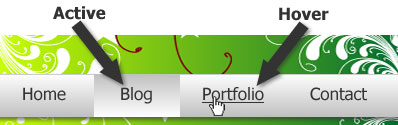
    active and hover navigation example


    2. Clickable labels & buttons

    When you take the time to mark up a form properly a user can click a label to activate the associated form element and there’s a really easy way to show it off. This is a great piece of functionality built right into HTML. Unfortunately, very few users know about this natural gem of user interface.

    Letting the user know a label is clickable only takes a line or two of CSS (depending on how you write it) to change the cursor from the default text insert to a more clickable and friendly pointer.
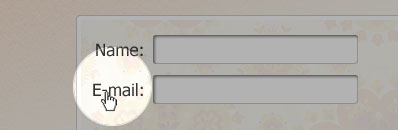
    form label with hover effect


    By now everyone’s well aware that submit buttons are clickable. I’ve always thought it was weird that this – obviously clickable – element doesn’t use the same cursor as a link. So I like to apply this bit of CSS to buttons as well:

    label, button, input[type="submit"]{cursor:pointer;}


    3. Linking your logo

    Not linking a logo to your site’s home page is one of the more frustrating things I’ve come across on the Web. I can’t understand why someone wouldn’t so this. It’s so easy, and by now, it’s safe to say, users expect it.

    Linking your logo is so common nowadays that many sites are finding that having a link labeled “Home” isn’t useful anymore, as users are just clicking the logo to navigate to the home page.

    Sites such as Facebook, track user clicks by adding the “ref” parameter to each navigational element. Below is an example of how Facebook links their logo:
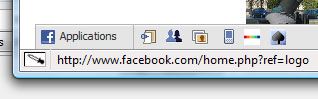
    facebook


    4. Increasing the hit area on a link

    About a year ago, Ryan Singer from 37Signals wrote an article about how they padded link targets for better mousing in Basecamp. This is another small usability trick that you can use by simply adding some padding around links to make the clickable area larger.

    This is a great addition to any site and it can help prevent misclicking on a link, which can often be a little frustrating. It also helps a lot in mobile Web design, where users click with their fingers and really need that extra large hit area on a link.
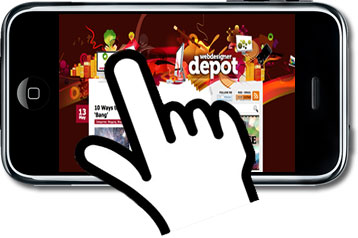
    iphone

    5. Adding focus to form fields

    Applying focus to a form field is a growing trend in UI design. It lets the user know that what they just did caused something to happen (did that make sense?). It’s a quick and easy way to pass useful, unobtrusive information onto the user. Saying something like: “Hey! You just clicked here.” Can be very useful.
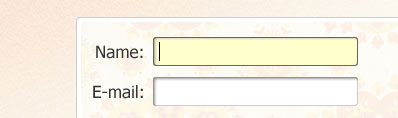
    a focused form element


    6. Providing a useful 404 page

    Making the user feel comfortable is very important and displaying a big Apache error message on the screen isn’t the best way to accomplish that. A useful 404 page can go a long way and it doesn’t have to contain the numbers “4″ or “0″, as they aren’t very helpful to anyone other than the developer. Besides this, no one really needs to know the error code for anything that happens behind the scenes. Users just want a site to work the way they expect it to.

    On the off chance a user does find themself on a “Page not found”, it’s much more helpful to lead them somewhere where they might be able to locate the information they’re looking for, by providing some apologetic text, a search box, or suggest some possible destinations. But try not to put the blame on the user for landing on a wrong URL.

    Blogussion wrote a great article about creating an informative 404 page that lists some very good tips and even some code for those WordPress users among us.
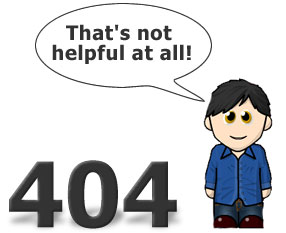
    404 error


    7. Using language to create a casual environment

    Writing on the Web is a big topic right now. It’s like we’re going down some giant checklist dealing with issues: HTML, CSS, progressive enhancement, accessibility, writing for the Web, and the all encompassing “Web standards”.

    We’re hearing a lot about writing on the Web and it seems to keep changing. From the days of Steve Krug telling us to cut our content in half to using bulleted lists wherever possible.

    Now we’re all supposed to write like we’re talking to a friend and it all goes back to making the user feel like they’re in a comfortable environment. When you keep the copy on your site casual, it makes a user feel less stressed, so even when they do encounter something confusing they can still feel a sense of relaxation and informality as they search for their answer.
    couch


    8. Applying line height for readability

    Line height is one of the things that can be directly inherited from physical media, such as books and newspapers. These sources have been around for hundreds of years and have had plenty of time to master readability and line height. So the next time you’re stuck on this, don’t be afraid to crack open a textbook and check it out.

    This is an aspect of Web design that can be easily overlooked and easily abused. I usually start off with a line height of about 1.4em and adjust it from there, based on the design and content.
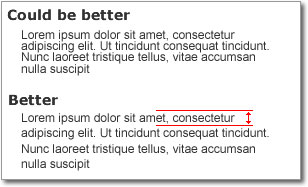
    example of line height


    9. Utilizing white space to group elements

    Grouping items together is one of the easiest ways to show association. You can do it with images, borders, or just plain old white space. Using white space to group elements creates natural associations between related elements that, even when read at a glance, can be easily picked up by the user.

    As the eye scans a page, a user will naturally read the headings first. This happens a lot with top 10 lists (::ahem::). Hopefully, the content is interesting enough to grab some attention and entice the user to read a little more closely. You push users in the right direction by designing your content in a way so that things that are related actually look like they’re related.
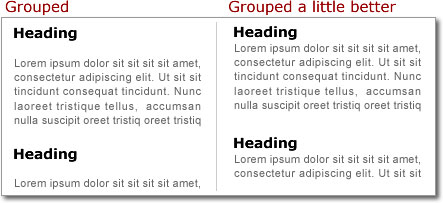
    whitespace


    10. Being accessible

    By being accessible, I don’t mean Section 508 and ADA compliance. Accessibility, in this case, means being there for your users when they have a problem (responsiveness).

    If usability is all about trying to make sure your users don’t get frustrated and leave, responsiveness is your last line of defense against losing that user to one of the millions of competitors who are a short click away.

    Ultimately, you can do all the testing that you want and follow all of the usability advice that you can get your hands on, but everybody is different. Users will get confused and lost and eventually need some help. The amount of time you leave a user confused can be the difference between someone who will come back and someone who won’t.

    When talking about accessibility, many people default to a conversation about the visually impaired, but accessibility extends far beyond that. For example, you have to make your web site accessible to users with bandwidth restrictions (dial-up connections, cell service, slow networks) and older browsers (some companies won’t let employees upgrade browsers).

    If we do our best to make our sites as accessible as possible and respond quickly to questions we can create an overall experience that will leave the user constantly wanting more.

    Customer service matters… even on a blog.


    Written exclusively for WDD by Tim Wright, web designer/developer and blogger. You can find more of his writing at CSSKarma or follow Tim on Twitter.

    Do you follow all these principles on your websites? How can we create a better and more usable web? We’d love to hear your comments…


  • 62 Comments »

     
    #1
    Thiago Cavalcanti
    June 4th, 2009 at 9:31 am

    And the eleventh is:

    Make sure your JavaScript is unobtrusive and don’t use it when there’s a more fool-proof way of accomplishing what you want!

    Active navigation through JS is a very bad idea, other than that, this article is wonderful, congratulations!

     
    1 Reply
     
    #2
    Sunil
    June 4th, 2009 at 9:36 am

    Useful article


    #3
    Lars Hilse
    June 4th, 2009 at 9:47 am

    Definitely some good tips – sorry to see that hardly any of those ever get incorporated. Not even in bigger, corporate web presentations which could easily afford it.


    #4
    Dicky
    June 4th, 2009 at 11:33 am

    Great tips! These are the things that we always neglect when designing templates.


    #5
    ryan s
    June 4th, 2009 at 1:26 pm

    “This happens a lot with top 10 lists (::ahem::).”

    haha. That explains it then! Anyway great article again. I’ll incorporate some of these in my web projects. Thanks!


    #6
    Bruno
    June 4th, 2009 at 2:11 pm

    Helpful things.. Gonna try some of them


    #7
    Igor
    June 4th, 2009 at 3:40 pm

    Good tips. Thanks Tim and Walter!


    #8
    Spence
    June 4th, 2009 at 3:44 pm

    There’s some good ideas here, but I really think that for some of these, you really need to go to school to learn design. Otherwise you’ll apply something like step 9 everywhere, but there are so many other possibilities for grouping and creating hierarchy.


    #9
    Brian Cray
    June 4th, 2009 at 3:52 pm

    Usability FTW! Good tips, and one blog entry certainly can’t cover them all :)


    #10
    Adam
    June 4th, 2009 at 5:13 pm

    Most of those tips are already in our web standards including recently the 404 page. I normally put a list of the main pages on the website along with text saying: “you may be looking for one of these pages”


    #11
    Caleb Stewart
    June 4th, 2009 at 5:14 pm

    Very useful, along with all of your posts!

    These should be a tremendous help for the launch of my new website.

    Once again, thanks!


    #12
    Dinu
    June 4th, 2009 at 5:14 pm

    Also I would add: have a working search function on the site

    @Lars Agree with you. it’s amazing how the big corporates get even the simplest things wrong. There’s not that much of a cost in implementing this list. Should be basic stuff for any competent developer.


    #13
    Raymond Selda
    June 4th, 2009 at 5:15 pm

    Nice and simple tips here. This could be my preliminary usability checklist. Thank you for this.


    #14
    Brian Sanders
    June 4th, 2009 at 5:39 pm

    Great article! I’ll be passing it around the office, Thanks Tim!


    #15
    Mike Gensel
    June 4th, 2009 at 5:54 pm

    Nice article with some very useful information. I would also like to add that outside links should be made to open a new window/tab instead of in the current window. I browse so many blogs that mention sites that I would like to take a quick look at then return but I click on it and am removed from the article that I was trying to read. Personally it’s very agitating. (hint to webdesignerdepot.com…. lol).

     
    1 Reply
     
    #16
    Mike Diego
    June 4th, 2009 at 6:02 pm

    Great list. I still can’t believe it when I click on a site logo and it does not link to the home page. Very frustrating.


    #17
    Bar Mitzvah Photographer
    June 4th, 2009 at 6:14 pm

    Good Stuff.


    #18
    Daniel Errante
    June 4th, 2009 at 7:05 pm

    I agree with Thiago – You should design your site without any javascript first, then add javascript as a bonus. A lot of users still browse with javascript turned off (I don’t know why), so relying on javascript for navigation or other accessibility is a no no.

     
    1 Reply
     
    #19
    5starweddings
    June 4th, 2009 at 7:14 pm

    Very useful especially the line height issues. I see many sites not using the tips mentioned.

    Thanks


    #20
    Andy
    June 4th, 2009 at 7:25 pm

    Some good tips here. My only issue would be on Point 2 – clickable labels & buttons. The pointer cursor denotes links and actions that will take the user off somewhere or alter state (i.e. with javascript slideshows, carousels etc.), and I’m not convinced it’s appropriate for field labels, as all that’s happening is that focus is going to the field. 5 though (adding focus to fields) is a really useful usability enhancement that can be achieved with a small amount of CSS.

    And how nice it is to see someone recognising that accessibility is more than the needs of the disabled or visually impaired and – more importantly – goes beyond the checkbox lists of Section 508 or WCAG.


    #21
    Victoria
    June 4th, 2009 at 7:40 pm

    Very useful article. some of these I didn’t even know about. I am new though so there’s my excuse. Definitely going to bookmark on Delicious.

    Thanx


    #22
    Dre
    June 4th, 2009 at 8:38 pm

    On point 3, if you don’t have an obvious way of telling a user that your logo is linked to home (like you do here at WDD), it is still good to have a regular home link. I do both, link the logo and offer a home link on my main nav and footer nav.

    Cheers,
    Dre


    #23
    Diego Ripley
    June 4th, 2009 at 9:10 pm

    Haha, I definitely need to work on my 404 page, it’s not useful at all.

    http://diegoripley.com/misc/images/404.png


    #24
    Dario Gutierrez
    June 4th, 2009 at 9:56 pm

    Definitely good tips. I’am agree with Diego my 404 page is a mess!


    #25
    Vanderson
    June 4th, 2009 at 10:05 pm

    Good job


    #26
    Charlie Kalech
    June 4th, 2009 at 11:10 pm

    Nic collection of hints – thanks!

    Use this from Google to make a more useful 404 page

    http://googlewebmastercentral.blogspot.com/2008/08/make-your-404-pages-more-useful.html


    #27
    Tim Wright
    June 4th, 2009 at 11:21 pm

    Thanks for all the feedback everyone, I really appreciate the comments!


    #28
    Dimas
    June 4th, 2009 at 11:55 pm

    Great tips.

    I think looking to the desktop for user usability tips is key, always try to NOT reinvent UI concepts, keeping things simple and straightforward helps users quickly grasp and use your sites.

    Additionally, I think is always good to not “fight against the river, but go with the flow” … and by that I mean: the web is a medium that takes on all kinds of shapes and sizes, your designs/structures should never be too restrictive but should flow. Text/content is king, let it flow freely.


    #29
    sergi
    June 5th, 2009 at 12:04 am

    “increase the hit area” — love it! great idea.


    #30
    Crysfel
    June 5th, 2009 at 12:39 am

    Thanks for the tips!! very important and useful


    #31
    Warren
    June 5th, 2009 at 1:46 am

    Some good tips and info in there, ways to make a site and the functionality within it much more user friendly and aware. For us, we found that (No 3) was not a big thing for users, certainly in the tech world we know to click the logo, but for a University with Future (potential) and Current Students our research showed most didn’t recognise that the logo was a place to click to return home.
    In our situation we have a range of sub-sites and sub-webs hosted on various platforms and places, if all users worked this way it would be great to go back to our main site/page through the logo but only 20% of our surveyed users tried it. The solution is to ensure other methods are also available, a Home button in the task based navigation is often a preferred one.
    Thanks for some good tips.


    #32
    Klayemore
    June 5th, 2009 at 2:09 am

    Point 1 makes sense, but using Javascript to handle hover effects is terrible. This can be done much easier and cleaner with CSS.


    #33
    Ed @ Kliky
    June 5th, 2009 at 3:07 am

    3. Linking your logo

    My how far we’ve come! Thanks for the reminder (or heads up) for those who don’t do follow this practice.


    #34
    Norman
    June 5th, 2009 at 3:27 am

    yeah good old line-height, used alot in our company. its better than using display:block +height all the time.

    anyway, good points especially the one about the 404 page, which should always include a search form in my opinion.


    #35
    Ben
    June 5th, 2009 at 4:31 am

    Great read, dissapointing to know that “linking your logo” and “click able labels” aren’t standard practice these days.


    #36
    Daquan Wright
    June 5th, 2009 at 8:19 am

    Wonderful and insightful article, usability is a bit topic, especially if you value your user base. Change little details here and there, eventually you’ll get there. Great tips basic or not, overall.


    #37
    Hasanah
    June 5th, 2009 at 8:20 am

    Thanks! This is enlightening. I’ve already forwarded this article to the rest of my office. Will definitely come back here the next time a web design job comes in. ;)


    #38
    zoel
    June 5th, 2009 at 10:40 am

    prefect! ;-) nice share , I think colors and typography site is too! ;-)


    #39
    Farooq
    June 5th, 2009 at 4:44 pm

    really nice article good tips.


    #40
    Tim Wright
    June 5th, 2009 at 6:48 pm

    Hey, I’m really glad so many people are finding the article so useful!

    In response to the the JavaScript navigational comments:
    It’s not the best solution (that’s why I ranked it number 3), but if all your other options have been exhausted, it’s better than nothing.

    On a related note, if you can do your active navigation server-side you can also add in some accessibility with a title attribute of “you are here”. Just another little usability/accessibility add on for your site :)


    #41
    Eileen Allen
    June 5th, 2009 at 6:59 pm

    Great article. But one small omission. It’s important to understanding the client variable. We need to design not for what the client wants, but what they need. Usability and site goals go hand in hand.


    #42
    VertigoSFX
    June 5th, 2009 at 10:58 pm

    This is a great article. Lots of stuff in there that can help me out as a designer in training (I guess we’re all always in training, but i’m still not up to speed on all the behind the scenes programming aspects).

    Will definitely delicious this one.


    #43
    Realizzazione Siti Web Bologna
    June 6th, 2009 at 2:43 am

    Very interesting the 9 Utilizing white space to group elements. Usually the padding can helps to do it…


    #44
    Osama Pro
    June 6th, 2009 at 10:36 am

    Very interesting . Thank you .
    Sometimes we need to change our site and do some tips..


    #45
    Viggo Andersen
    June 9th, 2009 at 1:15 pm

    Thanks, very helpful, also for a n00b that just started outling his project. ^^


    #46
    Howard Davidson
    June 9th, 2009 at 10:14 pm

    Good points! Further to the discussion, see: Avoid Website Embarrassment -
    http://www.metropoliscreative.com/2009/06/avoid-website-embarrasment.html and add your comments!


    #47
    enterprise resource planning
    June 11th, 2009 at 6:47 am

    The benefit of a search engine friendly website is it has a greater chance of getting sales. Good website structure makes people spends more time on your site and the more vital it turn out to be useful in their mind, the better chances that they will purchase your product or services. The endeavor of every website ought to earn good volume of traffic and will convert visitors into potential traders is a good quality ecommerce website design,a touch of enterprise resource planning and continual application development.


    #48
    Upender
    June 11th, 2009 at 9:16 am

    good article


    #49
    Jim
    June 14th, 2009 at 9:11 pm

    Definately, a useful article


    #50
    Juanu
    June 15th, 2009 at 10:56 pm

    Great! :D


    #51
    oxidizzy
    June 18th, 2009 at 6:42 am

    Helpful things.. thanks so much!!!


    #52
    Beau
    July 3rd, 2009 at 9:01 am

    Great tips! Especially number 4. I thought you might be interested in a recent study which analyzed many of the elements of some of the most popular websites around. I’m sure they know what they’re doing when it comes to usability!


    #53
    Jenny
    July 7th, 2009 at 5:23 pm

    Hey, just stopping by from stumble. Great post. :) I’ll be back to read more of your updates. You seem to have a very interesting bloggy.


    #54
    Hosting boy
    July 21st, 2009 at 2:01 pm

    Inspiring tips about web creation.


    #55
    Connor Crosby
    July 23rd, 2009 at 5:41 pm

    This is very helpful, thank you very much! I am just getting started and redesigning my site soon so this can be helpful when making my new site! THANKS SO MUCH!


    #56
    Vis
    July 27th, 2009 at 12:15 am

    prefect! nice share , I think colors and typography site is too!


    #57
    Jaspal Singh
    July 31st, 2009 at 2:15 pm

    Great article, Thanks for sharing.


    #58
    traffic ticket
    September 16th, 2009 at 2:18 am

    Excellent work. I like the form focus view one.

    Thanks for the tips!


    #59
    mengembalikanjatidiribangsa
    September 27th, 2009 at 1:06 am

    Great tips! Thanks for sharing.


    #60
    S Emerson
    October 1st, 2009 at 10:42 am

    Clickable labels & buttons – bet not many people know that.

    Linking your logo – Yes, some designs don’t do that, which is annoying when they don’t have a Home link available. Think having both a clickable logo and a Home link is better for usability.

    Increasing the hit area on a link – Excellent point!

    Adding focus to form fields – Like to add: include default instruction in the input box. It can disappear on focus.

    Providing a useful 404 page – Yes this is important! It’s amazing how many sites the designer forgot to do a custom 404 page at all.


    #61
    nazuka
    October 18th, 2009 at 4:33 am

    nice tips, thx a lot…


    #62
    media planning
    October 20th, 2009 at 6:47 pm

    These are all great tips, but don’t forget to advertise your website too.

     
    Name (required)

    E-mail (required - never shown publicly)

    Web-site

    Your Comment (smaller size | larger size)

Home| Advertising| About| Contact

© 2009 All Rights Reserved